
PDF · USER MANUAL
K94 User Manual
Connection modes, shortcuts, system switching, charging, and everyday controls.

K94 SUPPORT
Configure your keyboard, find official files, and solve common setup questions in one place.
USB wired mode · Chrome or Edge · Official K94 resources
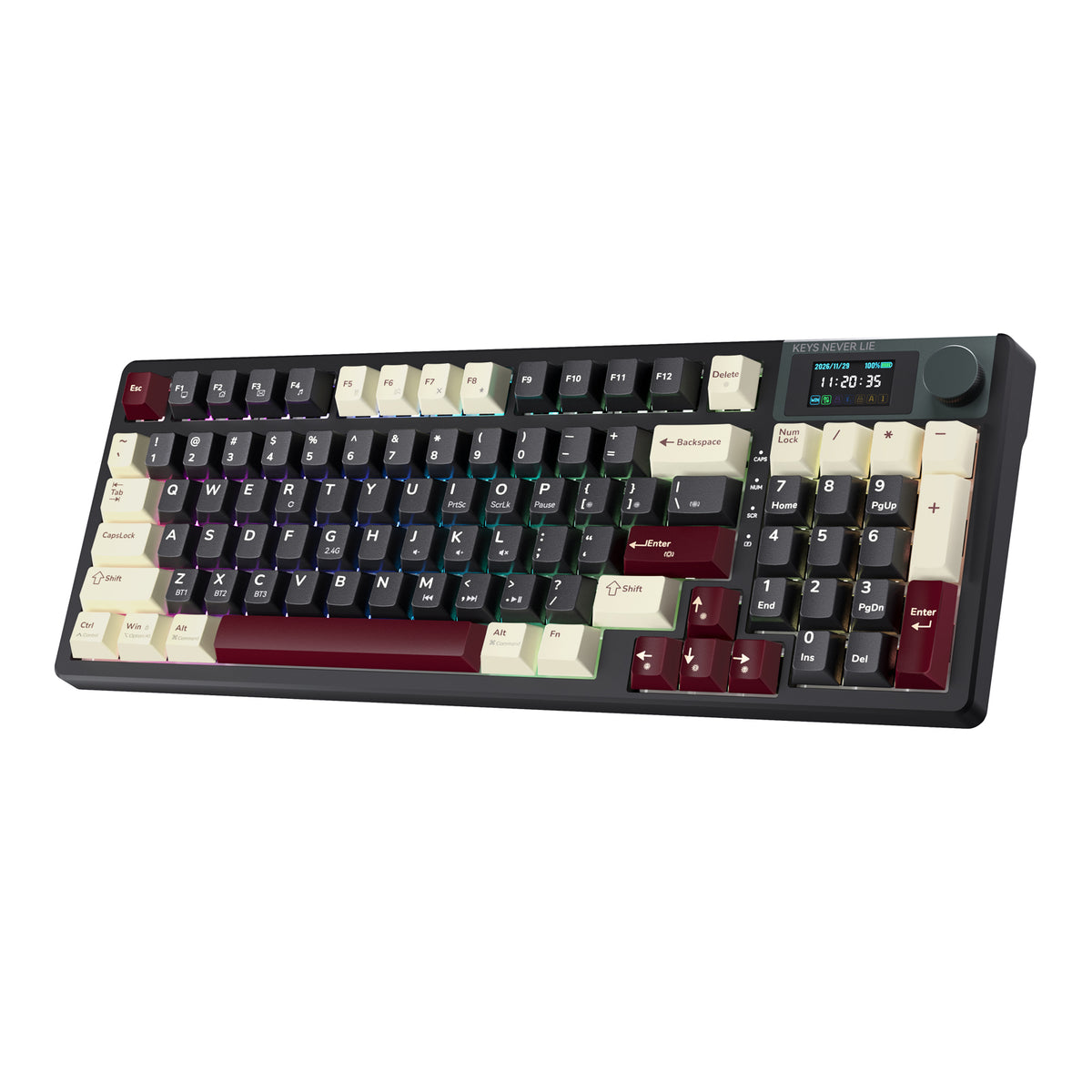
Choose the resource for your task. For routine key remapping, use VIA and the K94 definition file.
PDF · USER MANUAL
Connection modes, shortcuts, system switching, charging, and everyday controls.
JSON · KEYBOARD LAYOUT
Load the official K94 layout in VIA. Loading the JSON does not flash firmware.
GITHUB · DEVELOPER RESOURCE
Official source code and technical reference. Routine remapping does not require firmware flashing.
SCREEN TIME
Sync the K94 clock with your connected computer from KEMOVE Web Hub.
Switch K94 to wired mode and connect it directly to your computer with a data-capable USB cable.
Open the official browser driver while your keyboard stays connected.
Go to the screen GIF upload interface in K94 Web Hub.
Keep K94 connected, choose Sync Time, and check the updated clock on its screen.
VIA SETUP
Connect by USB, load the official definition, and authorize your keyboard. Loading the JSON does not flash firmware.
Switch K94 to wired mode and connect a data-capable USB cable directly to your computer.
Save the official K94 definition file from this page.
In VIA Settings, enable the Design tab. Choose Load Draft Definition and select the JSON file.
Return to Configure, authorize K94 when prompted, then edit keys, layers, and macros.
FIRMWARE
For routine keymap changes, use VIA. Only install a verified release for your exact hardware revision when KEMOVE instructs you to update.
K94 may initially display China Standard Time. Connect K94 to your computer in USB wired mode, open KEMOVE Web Hub, go to the GIF upload interface, and choose Sync Time. Keep the keyboard connected and confirm the updated clock on its screen.
Usually no. Keep the current K94 JSON available and reload it after clearing browser data, changing computers, or when KEMOVE publishes a newer definition.
Use USB wired mode with a data-capable cable, connect directly to the computer, close other keyboard tools, and try Chrome or Edge. Reconnect K94 before authorizing it again.
Use USB wired mode for browser authorization, VIA setup, troubleshooting, and firmware-related operations.
Do not update firmware for routine remapping. Install only a verified customer release that matches your exact K94 hardware revision.
Stop trying different files. Contact KEMOVE Support with the hardware revision, firmware filename, updater message, operating system, and a screenshot or short video.
KEMOVE SUPPORT
Send your K94 hardware revision, operating system, connection mode, and a screenshot or short video so Support can diagnose the issue faster.